In this tutorial, we will look how to install and configure a mail client (Thunderbird) on your local machine with your personal mail server, by setting up IMAP and SMTP connections.
About Thunderbird Link to heading
Mozilla Thunderbird (yep, the same organization owning Firefox) is a free, open-source desktop email client that lets users send, receive, and manage email from multiple accounts in one place. In this guide, it serves as the client used to connect to the self-hosted mail server configured earlier in the series. It is available to download for linux, macos, windows and android. They have also added an iOS version to their future roadmap and is currently in beta.

Installing Thunderbird Link to heading
You should be able to download and install thunderbird for your distribution 😄
Configuration Link to heading
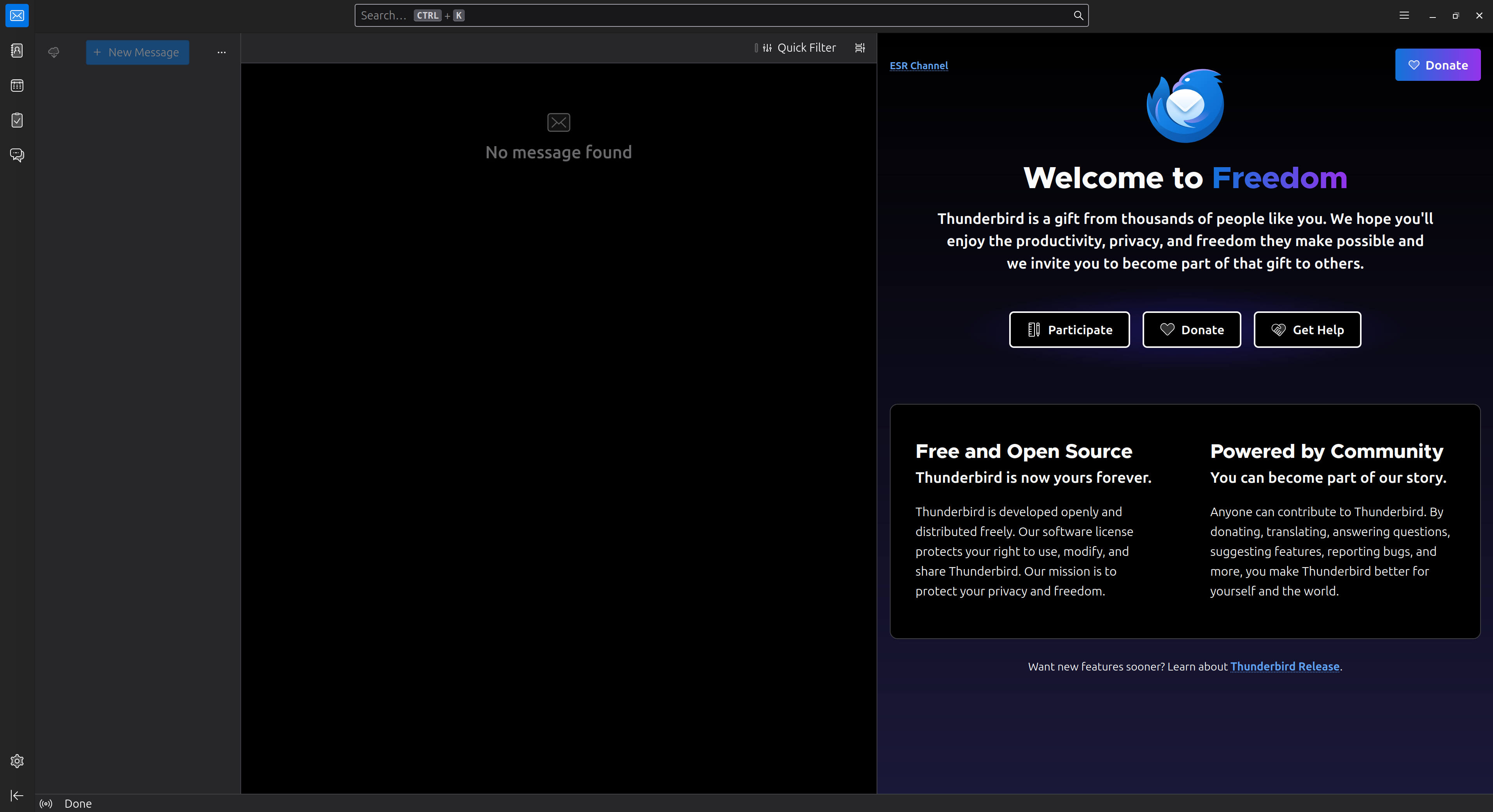
On first boot, you will be presented with a screen like this:
- In the menu bar, click Account Settings.
- At the bottom of the left sidebar, click Account Actions → Add Mail Account.
- Enter your mailbox credentials:
- Your Name: Your display name
- Email Address:
postmaster@example.com - Password: mailbox password created in iRedMail
- Click Configure manually.
Incoming Mail (IMAP) Link to heading
| Setting | Value |
|---|---|
| Protocol | IMAP |
| Hostname | mail.example.com |
| Port | 993 |
| Connection Security | SSL/TLS |
| Authentication | Normal Password |
| Username | user@example.com |
This connects to the IMAP service provided by Dovecot.
Outgoing Mail (SMTP) Link to heading
| Setting | Value |
|---|---|
| Hostname | mail.example.com |
| Port | 587 |
| Connection Security | STARTTLS |
| Authentication | Normal Password |
| Username | user@example.com |
This sends mail through the SMTP service provided by Postfix.
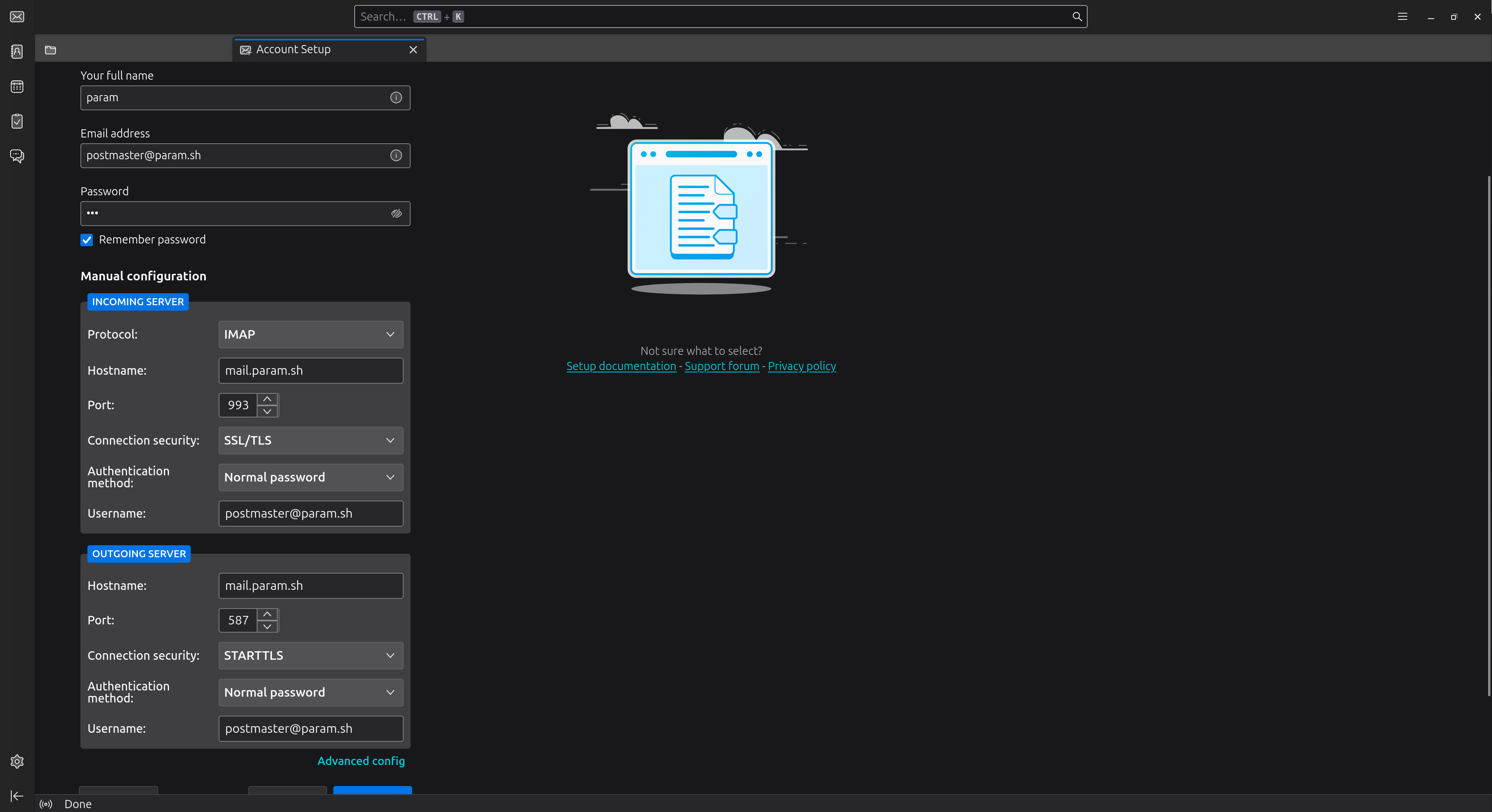
Once all set, You can click on the Test connection button.
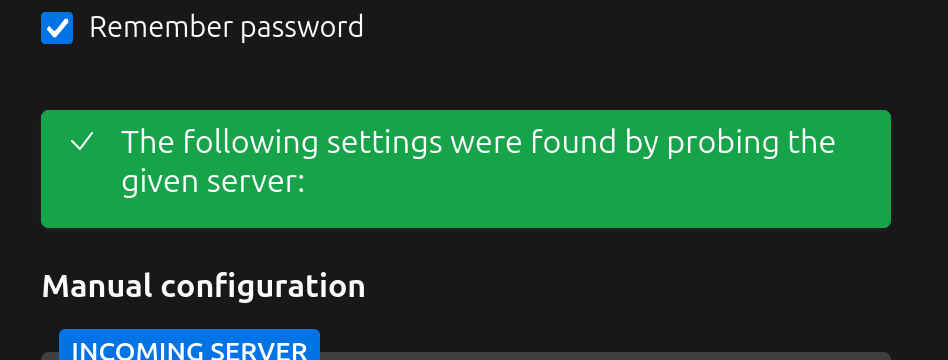
It threw error for me earlier and the problem was that it couldn’t establish IMAPS and SMTPS connections for dovecot and postfix, stating:
failed: The certificate is not trusted because it is self-signed.`
If that’s the case for you, you need to update your SSL certificate for IMAP and SMTP connections as well. To do that remove the iRedMail default certificates and replace them with the ones you generated via Let’s Encrypt (or any other provider) in the previous post.
# Remove the old certificates
sudo rm /etc/ssl/certs/iRedMail.crt
sudo rm /etc/ssl/private/iRedMail.key

# Link the Let's Encrypt certificate
sudo ln -s /etc/letsencrypt/live/mail.param.sh/fullchain.pem /etc/ssl/certs/iRedMail.crt
sudo ln -s /etc/letsencrypt/live/mail.param.sh/privkey.pem /etc/ssl/private/iRedMail.key

# Don't forget to restart the mail services
sudo systemctl restart postfix
sudo systemctl restart dovecot
Retry the connection in thunderbird and it will succeed.
Done.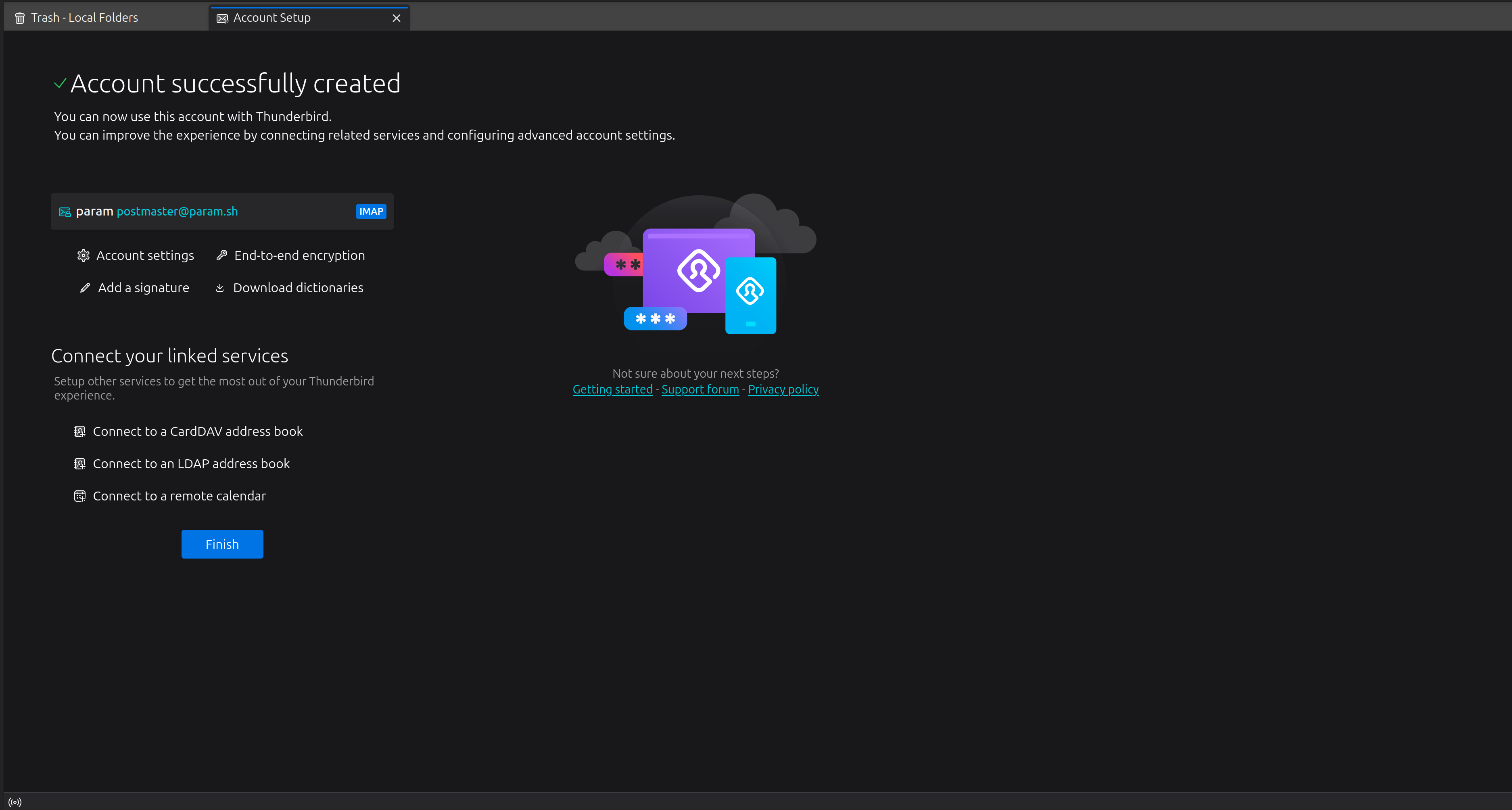
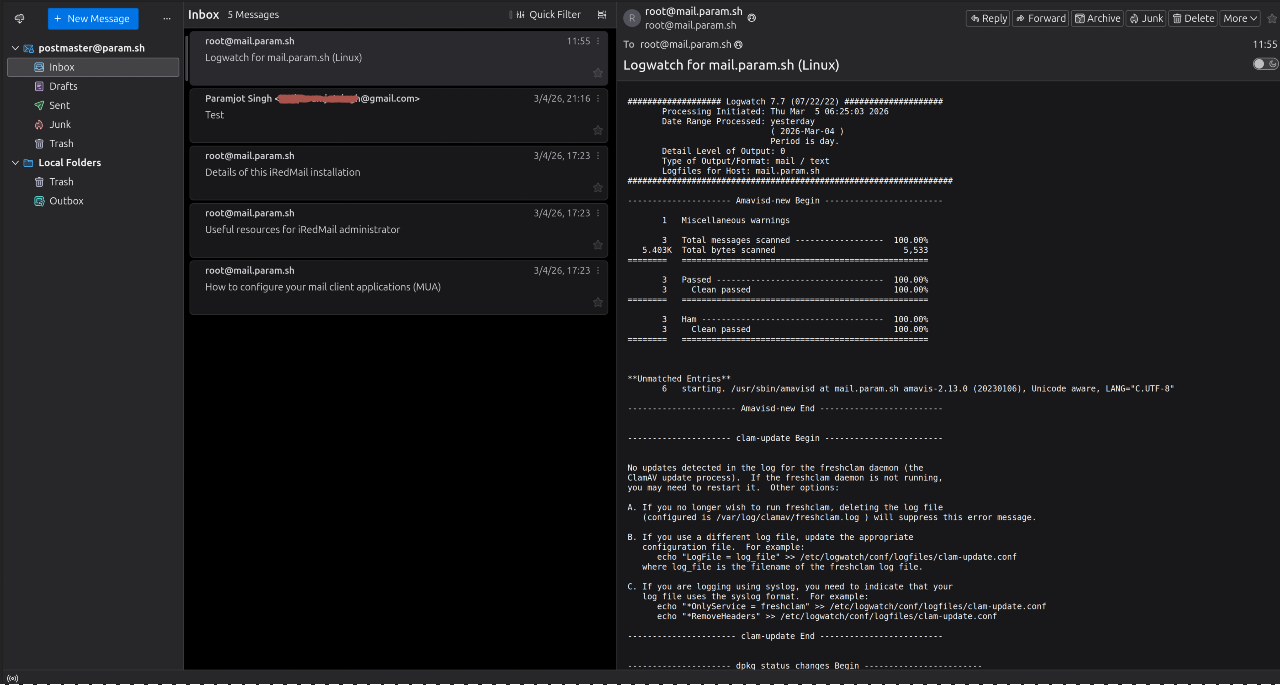
Now, if you click on your inbox after clicking Finish Setup, you will notice that you have received a new mail confirmation from root@mail.example.com which is none other than your Mail Server Instance itself showing the connection was successful
Final Words Link to heading
You successfully completed the setup of the mail client and with this we can finally wrap up this series for good. Enjoy receiving mails on your private mail server. You might as well wanna send me hello if this method works, right? About that😅, I did this for learning and demonstration purpose, so before publishing this post, I will take down the mail server offline to save costs. I know, I know… I started this series to de-google my life and getting off of gmail and all. But while my way to drafting this series, I realized that it’s too much work and I shouldn’t self-host an email server 😅. May be something else may be? Coz managing and working with all these different protocols is just… I don’t think is gonna last in the long run. Plus there are a lot of spams that gmail auto-block for me… If I need this solution to be reliable, I’ll have to work with SpamAssassin (part of iRedMail’s installation) as well which is againnn another big task.
So what am I gonna do now? Tbh, I think I will try setting up my email with a provider and custom domain… If not that, I’ll shift to ProtonMail (not sponsoring)… Not sure what’s gonna happen, but I will find a way. I always do 😄.
I hopefully will forget to update it here, so if you wanna reach out and thank me ? or curse me (for all the yapping up there)? Reach me out on X
Signing off,
– param