A Progressive Web App is a web app that delivers an app-like experience to users by using modern web capabilities. In the end, it’s just your regular website that runs in a browser with some enhancements. It gives you the ability:
- To install it on a mobile home screen
- To access it when offline
- To access the camera
- To get push notifications
- To do background synchronization and a lot more…
Though Progressive Web Apps bring a lot of benefits and functionality to the web, they don’t require rewriting your entire application. Any app can be converted to a PWA by adding a few extra layers to it.
Steps to make PWAs Link to heading
Create a simple app: As said, any app can be converted to a PWA, therefore, you need a base app to be able to run on the browser which you can later install locally.
- Add a Manifest.json
- Create a service worker
- Register the service worker
Writing Manifest.json Link to heading
It is a simple JSON file that informs the browser about your web app. This file states some important properties for your app to render in a PWA. In order to make your application installable, you need to include a manifest.json in the application’s root directory.
There’s also some configuration for how your application appears when it is launched from the user’s home screen: Do you want to show the address bar in the browser or not? What colour do you want the status bar to be? And so on. Note that a proper manifest.json should include a full spectrum of icon sizes for various devices. The code below is a preview of some of the properties your manifest can include.
{
  "name": "param373r's PWA",
  "short_name": "ParamWA",
  "start_url": "index.html",
  "display": "standalone",
  "background_color": "#fdfdfd",
  "theme_color": "#db4938",
  "orientation": "portrait-primary",
  "icons": [
    {
      "src": "/images/icons/favicon-72x72.png",
      "type": "image/png", "sizes": "72x72"
    },
    {
      "src": "/images/icons/favicon-96x96.png",
      "type": "image/png", "sizes": "96x96"
    }
  ]
}
Service Workers Link to heading
The service worker can intercept and handle network requests, manage the cache to enable offline support or send push notifications to your users. A service worker has no DOM access, and is non-blocking. It is designed to be fully async; so APIs such as synchronous XHR and Web Storage can’t be used inside a service worker.
Note that: Service workers only run over HTTPS, for security reasons.
An example service worker script looks something like this…
if ('serviceWorker' in navigator) {
    window.addEventListener('load', function () {
        navigator.serviceWorker.register('service-worker.js').then(function (registration) {
            // Registration was successful
            console.log('Registered!');
        }, function (err) {
            // registration failed :(
            console.log('ServiceWorker registration failed: ', err);
        }).catch(function (err) {
            console.log(err);
        });
    });
} else {
    console.log('service worker is not supported');
}
// service-worker.js
self.addEventListener('install', function() {
    console.log('Install!');
});
self.addEventListener("activate", event => {
    console.log('Activate!');
});
self.addEventListener('fetch', function(event) {
    console.log('Fetch!', event.request);
});
Note one more thing, at the point when the service worker is loaded by the browser (on site load) the service worker has the following options available, install and activate. Not going too deep, but these are the events being fired upon installing and activation of the PWA itself, and helps us to customize through the events.
Registering the service worker Link to heading
To register a service worker is simple, just add a load script in index.html for the service worker to load as soon as the window loads.
window.addEventListener('load', () => {
  registerSW();
});

// Register the Service Worker
async function registerSW() {
  if ('serviceWorker' in navigator) {
    try {
      await navigator
            .serviceWorker
            .register('serviceworker.js');
    }
    catch (e) {
      console.log('SW registration failed');
    }
  }
}
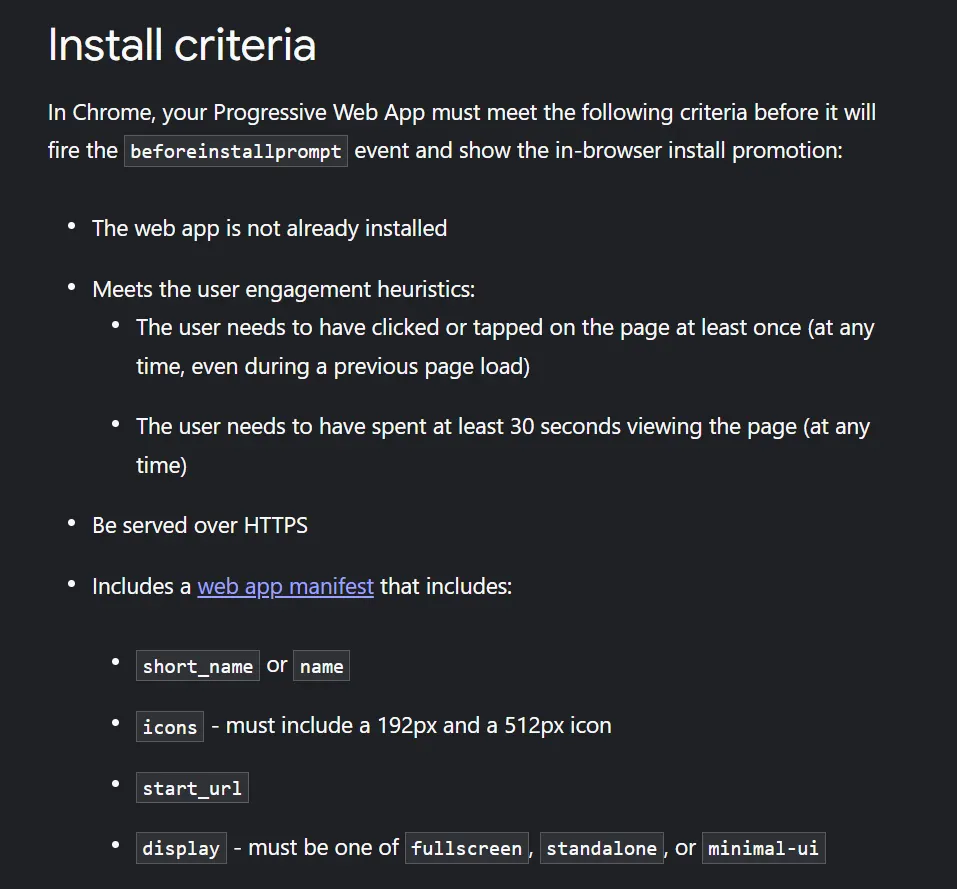
Install Criteria for a PWA (optional) Link to heading
Well Done!! Link to heading
You just built your very first PWA, which your users can easily install on their local devices such as desktops and mobiles. Now given you have done that, it’s always a good practice to optimize your code to work better with Installable PWAs. Following are some resources you can review in order to understand the PWAs and auditing them better:
- RAIL model: https://web.dev/rail/
- PWA audits with Google Lighthouse: https://web.dev/lighthouse-pwa/
- PWA checklist: https://web.dev/pwa-checklist/